
Digital Member Enrollment Employer FAQs - HBT
Managing Digital Member Enrollment in ADMINnet
-
Where can I find a copy of an employee’s enrollment form?
Employers can search and download a copy of their employee’s enrollment form under View Enrollment Forms in ADMINnet.
-
What employee email address should be entered for the enrollment invitation?
You can enter a personal or corporate email address when you invite an employee to enroll. If you enter a corporate email address, please make sure the employee has access to this inbox so that they can complete the enrollment form.
-
What number do I enter in the BID field?
Please use HBT’s Benefits Identification (BID) portal to find the employee’s 8-number BID number. Enter their Social Insurance Number (SIN) into the portal to find their BID.
-
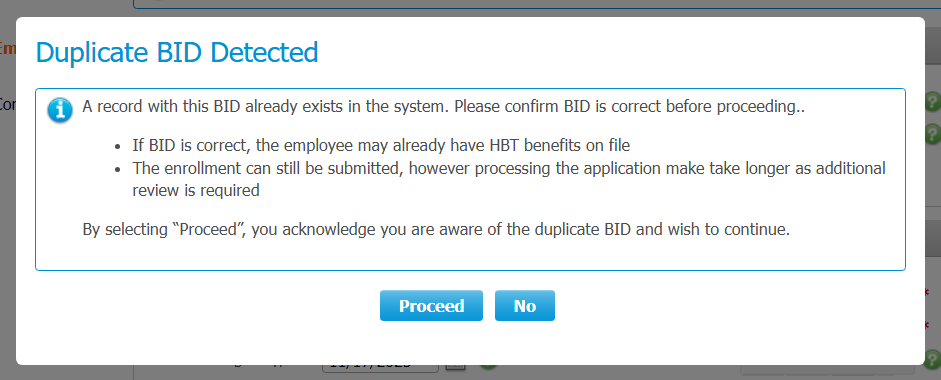
What if the employee holds two positions and has dual HBT coverage?
Continue to enter the employee’s BID and invite the employee to complete their digital enrollment form. Once the employee completes this, the system will automatically flag the duplicate BID enrollment and notify our Member Administration team to process and complete the enrollment. The enrollment will not be automated, so the application will be processed within our current turnaround times.
Should the Member Administration team require additional information regarding employment status, they will reach out directly to the employer by email.
-
What if a self-paying employee is electing to pay only one line of benefit?
If a self-paying employee completes the digital member enrollment form, they will automatically be enrolled with both Extended Health and Dental benefits.
Once the employee is enrolled, the employer will need to decline the appropriate line of benefit in ADMINnet, if applicable.
Step-by-step instructions can be found in the ADMINnet and Administration Guide.
As a reminder, the valid reasons to decline a benefit are:
- If the employee already has benefit coverage that would violate the dual coverage restriction as determined by the Collective Bargaining Agreement.
- If the employee is on a Leave of Absence (LOA) and declines self-paid benefits.
- If the employee is approved for a Long-Term Disability (LTD) claim and has the option to waive dental or extended health benefits.
Employee Experience
-
When will the link for the employee’s digital enrollment form expire?
The form will expire 30 days after their enrollment is initiated by the employer in ADMINnet. If the employee completes their enrollment form, then the link included in the invitation email will become invalid.
-
How often will the employee receive a reminder to complete their enrollment form?
The employee will receive the first reminder three days after their enrollment is initiated by the employer in ADMINnet. After that, they will receive a reminder once a week until the 30-day expiry period has been reached. The employer will be notified that the employee has not yet completed their enrollment form three days before it is due to expire.
-
What happens if the employee does not fill out the enrollment form before the 30-day expiry period elapses?
If the employee does not complete their enrollment form within the 30-day window, the link to their enrollment form will expire and the employer will need to initiate another enrollment for that employee. The employer will be notified after the 30-day expiry has passed.
-
What can the employee expect after they complete their enrollment form?
The employee will receive an email inviting them to register for Member Profile, where they can access their policy information and submit online claims. To register for Member Profile, they will need their Policy Number and ID Number, which will be included on the Pacific Blue Cross ID card that they will receive by mail at their registered address. The employer can also easily look up this information in ADMINnet. The employee will receive a brief feedback survey asking for their comments on the Digital Member Enrollment process, so that we can continue to improve our systems.
-
How should employees who have a dependent with disabilities submit required documentation?
If an employee indicates during enrollment that they have a dependent with disabilities, they will receive an additional email after enrollment. This email will give details of the required documentation and prompt them to submit details to their employer.
Troubleshooting
-
How do I know if I sent the digital enrollment form to the right email address?
There are safeguards in place to prevent the form from going to the wrong email address. Employers are required to enter the employee’s email address twice to authenticate it before they hit Next on the Employee Details section of the enrollment initiation form. If employers believe they entered the employee’s email address incorrectly, they should first check with the employee to confirm that they have not received an email from Pacific Blue Cross inviting them to complete their enrollment form. If they have not, employers can re-initiate their enrollment in ADMINnet. Please make sure that the employee only completes one enrollment form.
-
What should I do if a employee tells me that they didn’t receive the email inviting them to complete the digital enrollment form?
Ask the employee to check that an email from pbcenrollment_nac_dev@pac.bluecross.ca isn’t in their junk or spam folder. Encourage them to add this email address to their ‘Safe Senders’ list to ensure that they receive all email notifications. If the issue persists, employers can re-initiate the enrollment in ADMINnet. However, please make sure that the employee only completes one enrollment form.
-
What if I indicated incorrect information in the Employment section, such as incorrect salary amount or employment type?
After the employee has completed their form and is enrolled for their benefits, employers can find the employee's record in ADMINnet and update their employment information.
-
What if the employee made a typing error, such as incorrect date of birth or misspelled name?
Once the digital enrollment application is processed and the employee is enrolled on the plan, corrections to date of birth or spelling of name can be updated by the employer in ADMINnet.
To make a correction for either a employee or their dependent, select Add, Update, Terminate or Reinstate Family Members from the left-hand side menu. Locate the covered life and select Edit, which will allow you to make a single date of birth or name change.
-
What if I need assistance?
If you have questions or need assistance with Digital Member Enrollment, please email BenefitsTeam@hbt.ca or call 604-736-2087 (Toll-free at 1-888-736-2087).