How to send a new member enrollment invitation
With Digital Member Enrollment, adding new plan members is easy and takes just a few minutes.
Plan administrators invite new plan members to enroll, enabling them to provide their details directly to Pacific Blue Cross. This means that administrators are no longer required to collect and input new member information themselves.To invite a new plan member to enroll, log in to ADMINnet.
On the ADMINnet homepage, you will see three new tiles relating to the Digital Member Enrollment tool:
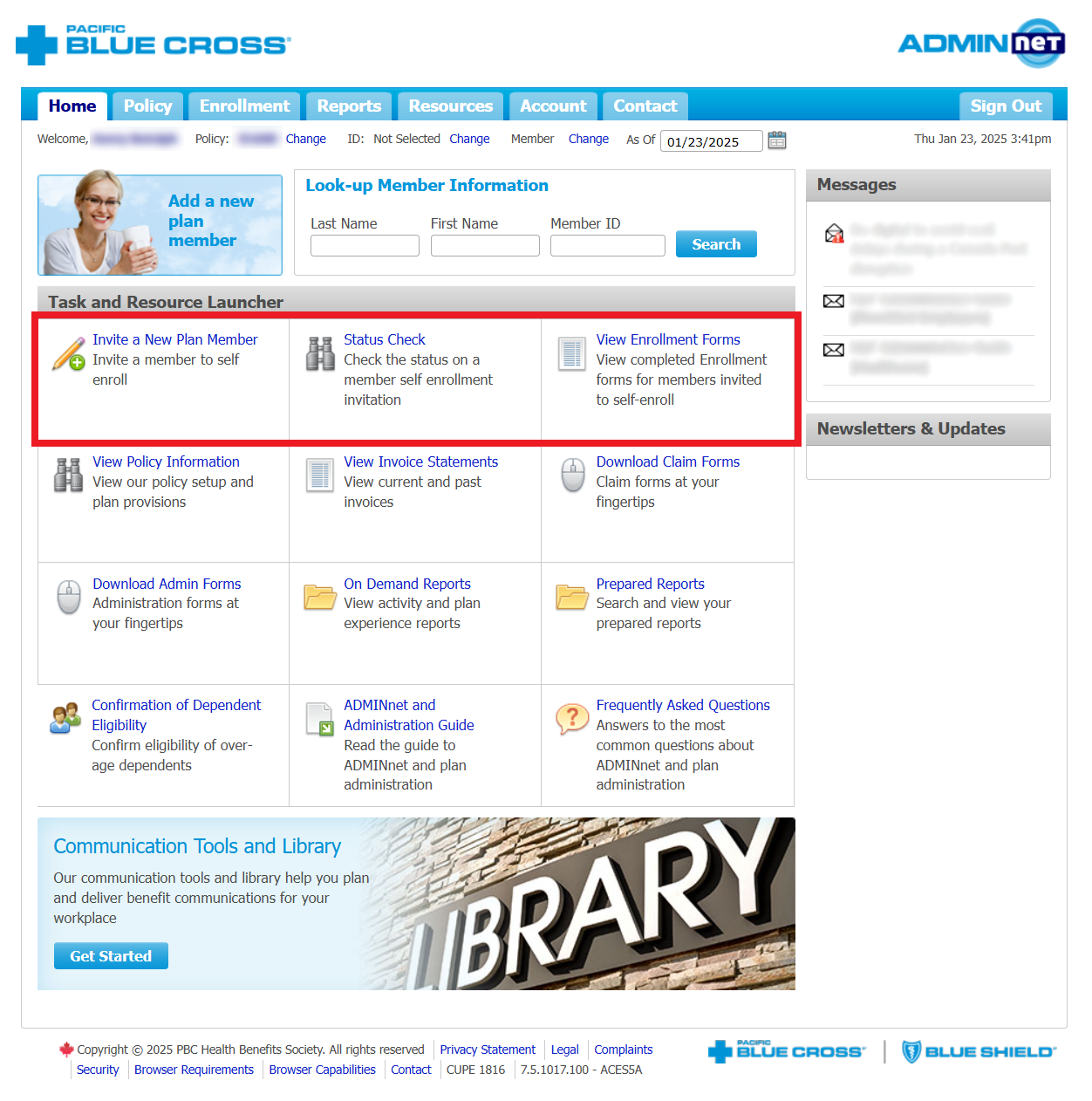
- The Invite a New Plan Member tile allows you invite a new plan member to enroll.
- The Status Check tile allows you to view the status of any digital member enrollments that you have initiated.
- The View Enrollment Forms tile allows you to view and download completed plan member enrollment forms.
Invite a New Plan Member to Enroll
Select Invite a New Plan Member from the ADMINnet homepage to start the three-step process to invite a member to enroll.

-
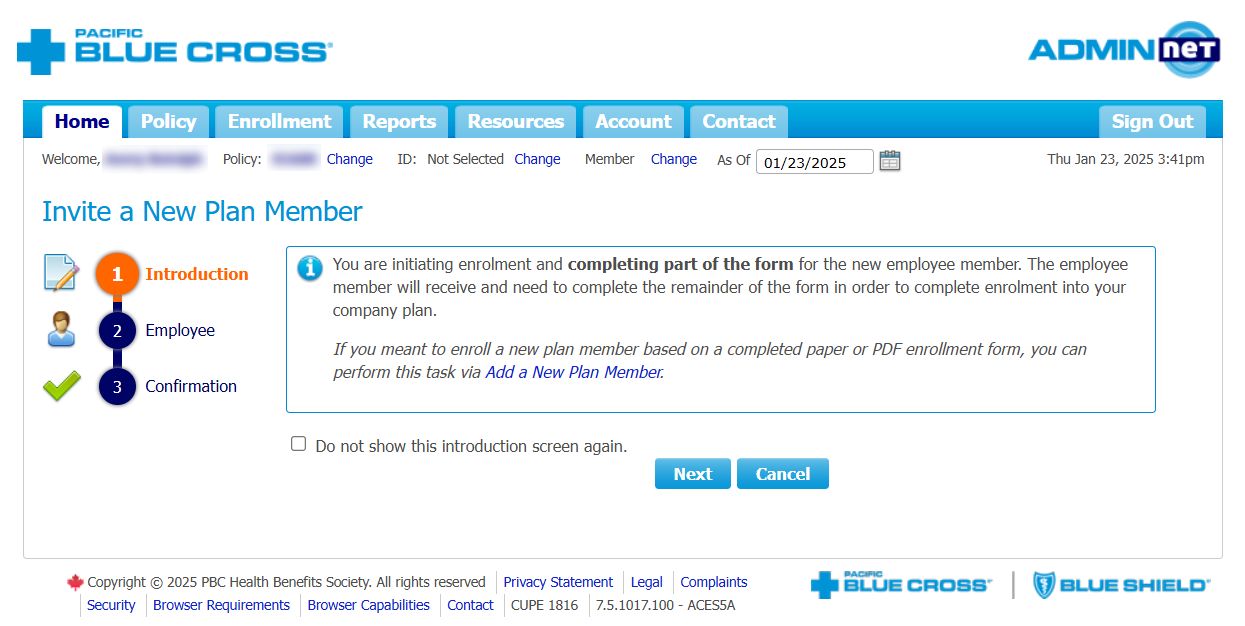
Read the introduction screen, then click Next.
You can check the box beside “Do not show this introduction screen again” so that you can skip this step for further enrollments in the same session.
-
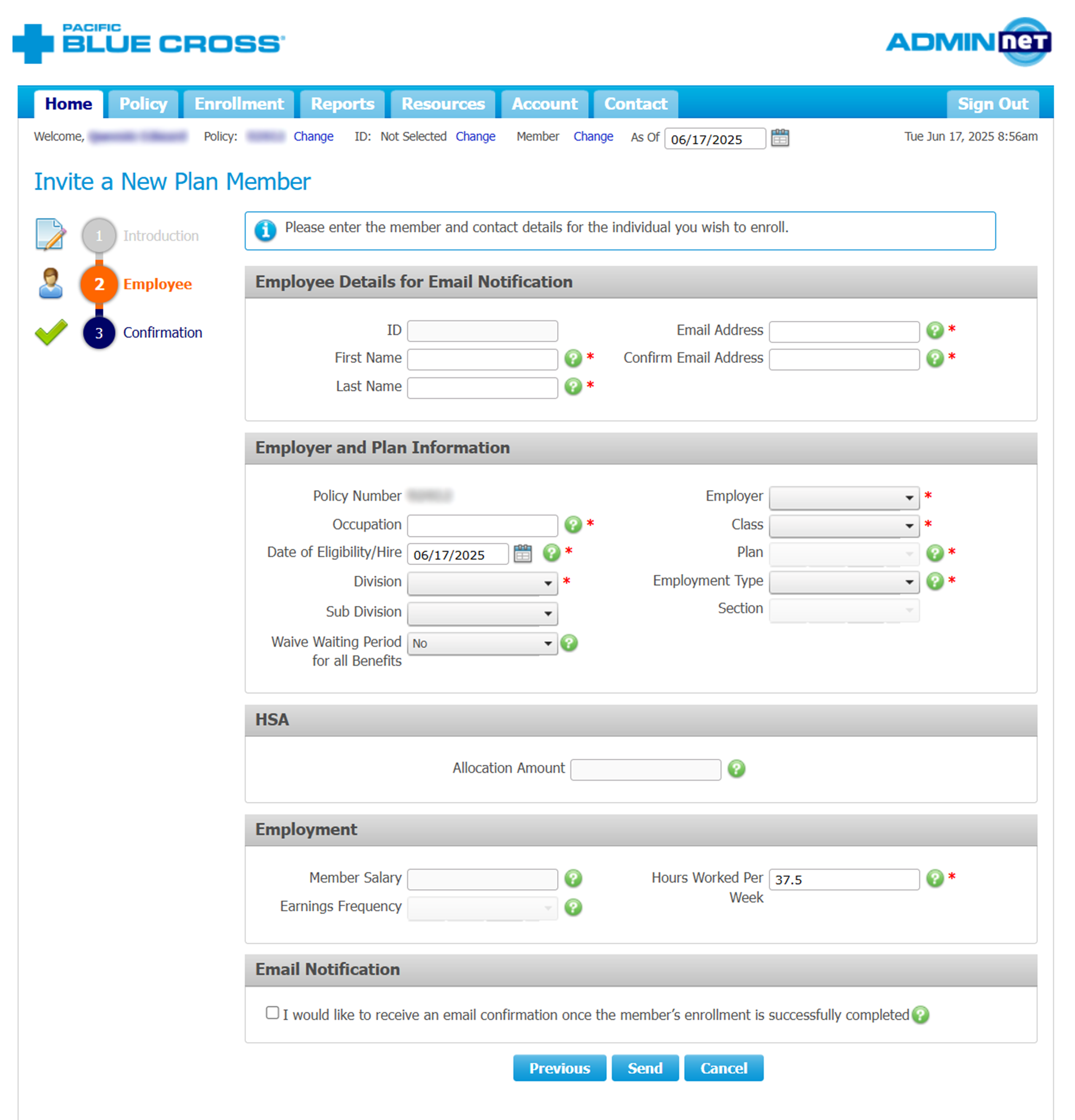
Complete the plan member’s details and employment information. You can find an explanation for the information required in each field by clicking on the

The fields marked with a red asterisk are required and you will not be able to complete the submission without filling them in.
The fields under Employer and Plan Information will include options specific to your policy and plan design. If your policy covers multiple employers, you can select the appropriate one from the ‘Employer’ dropdown menu. In the section you can also select to waive the waiting period for your plan member’s benefits.Once you have filled in all required fields, click Next to continue. Note that once you do so, the form will be submitted and the invitation to complete the online enrollment form will be sent to the plan member.
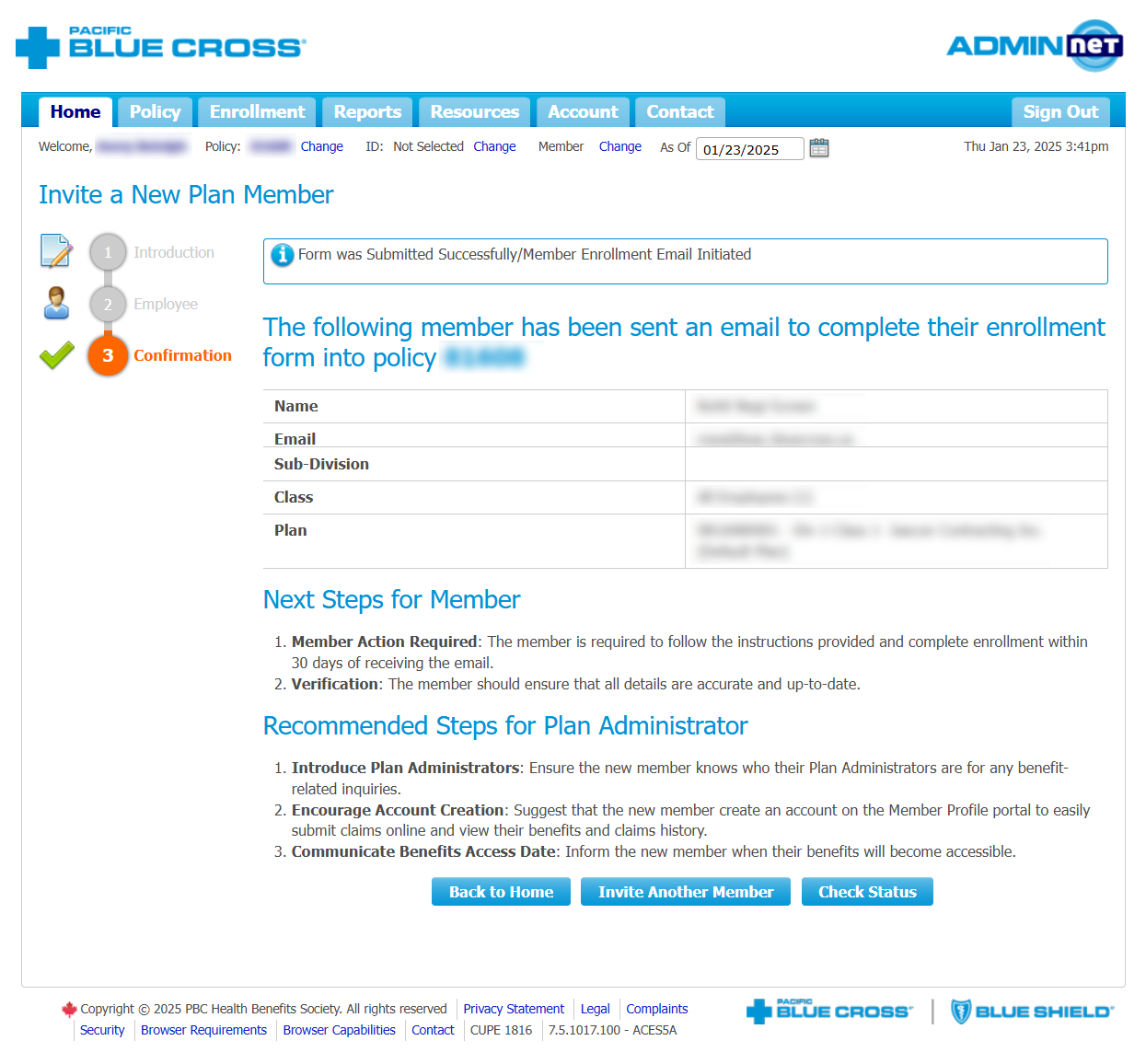
- You’ll be able to view a summary of the plan member information you submitted. This page also outlines the next steps for the plan member and recommended steps for the plan administrator.
From this page, you have three options:
- Select Back to Home to return to the ADMINnet homepage.
- Select Invite Another Member to repeat the digital enrollment process for another member.
- Select Check status to check the status of member enrollments you have initiated.
Status Check
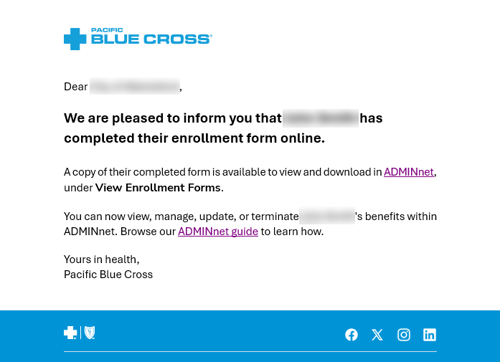
If you opted in for an email notification in step 2 of Invite a New Plan Member, you will receive the following message when the member has completed their online enrollment form.
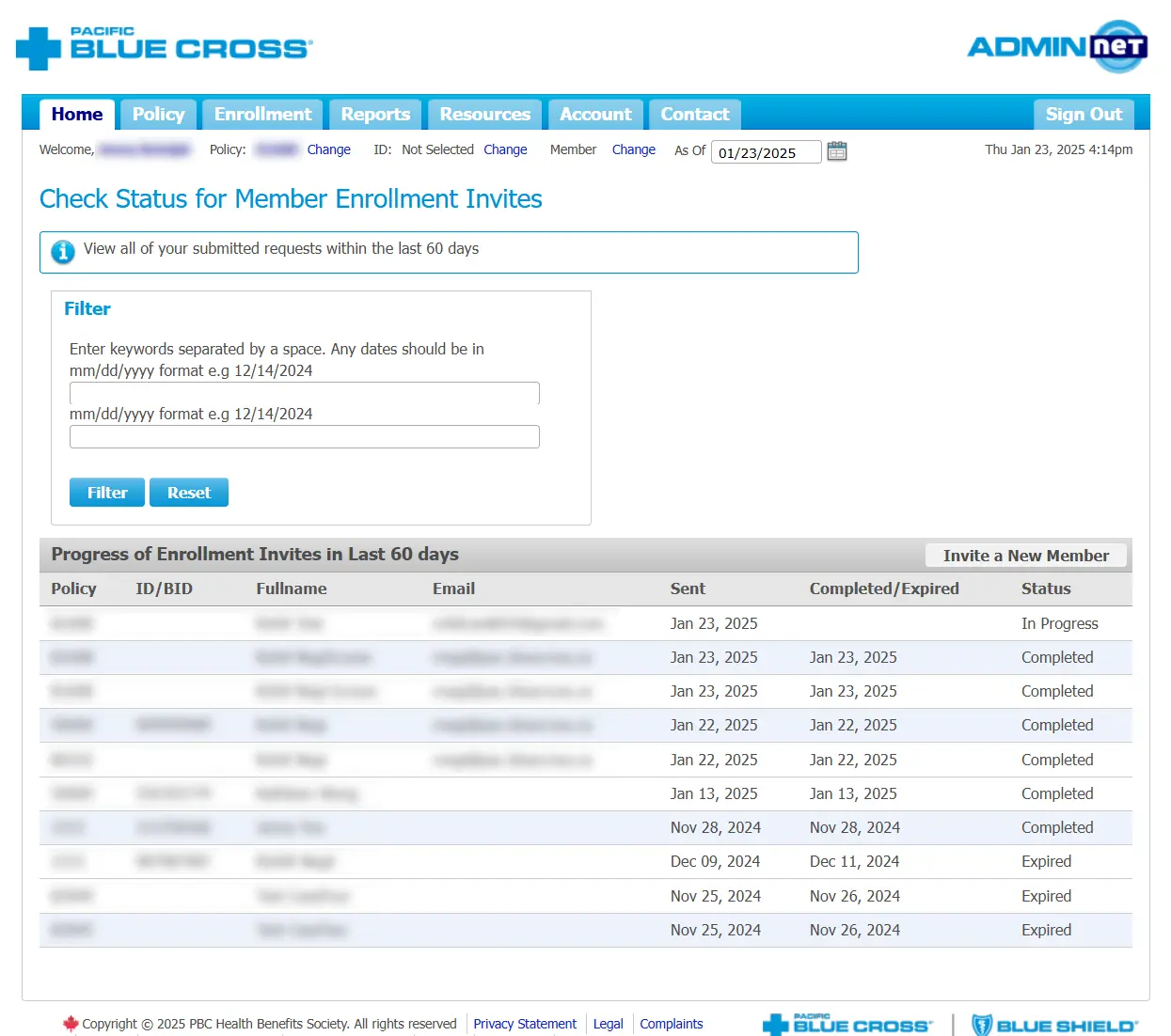
You can also check members’ progress by selecting Status Check from the ADMINnet homepage. You will be taken to a table view of all digital member enrollments that you initiated in the past 60 days.
For each new plan member, you’ll see their policy number, name, date that enrollment form was sent and completed, and the status of their enrollment, which will either be In Progress, Completed, or Expired. If the status is Expired, you can also see the date on which it expired.
Members will receive weekly reminder emails with a final reminder at the end of 30 days when the digital enrollment form expires. You will also receive a reminder email a few days before expiry, providing you with an opportunity to prompt the plan member to complete their form.
From this screen, you can navigate to Invite a New Member using the button at the top of the table.
View Enrollment Forms
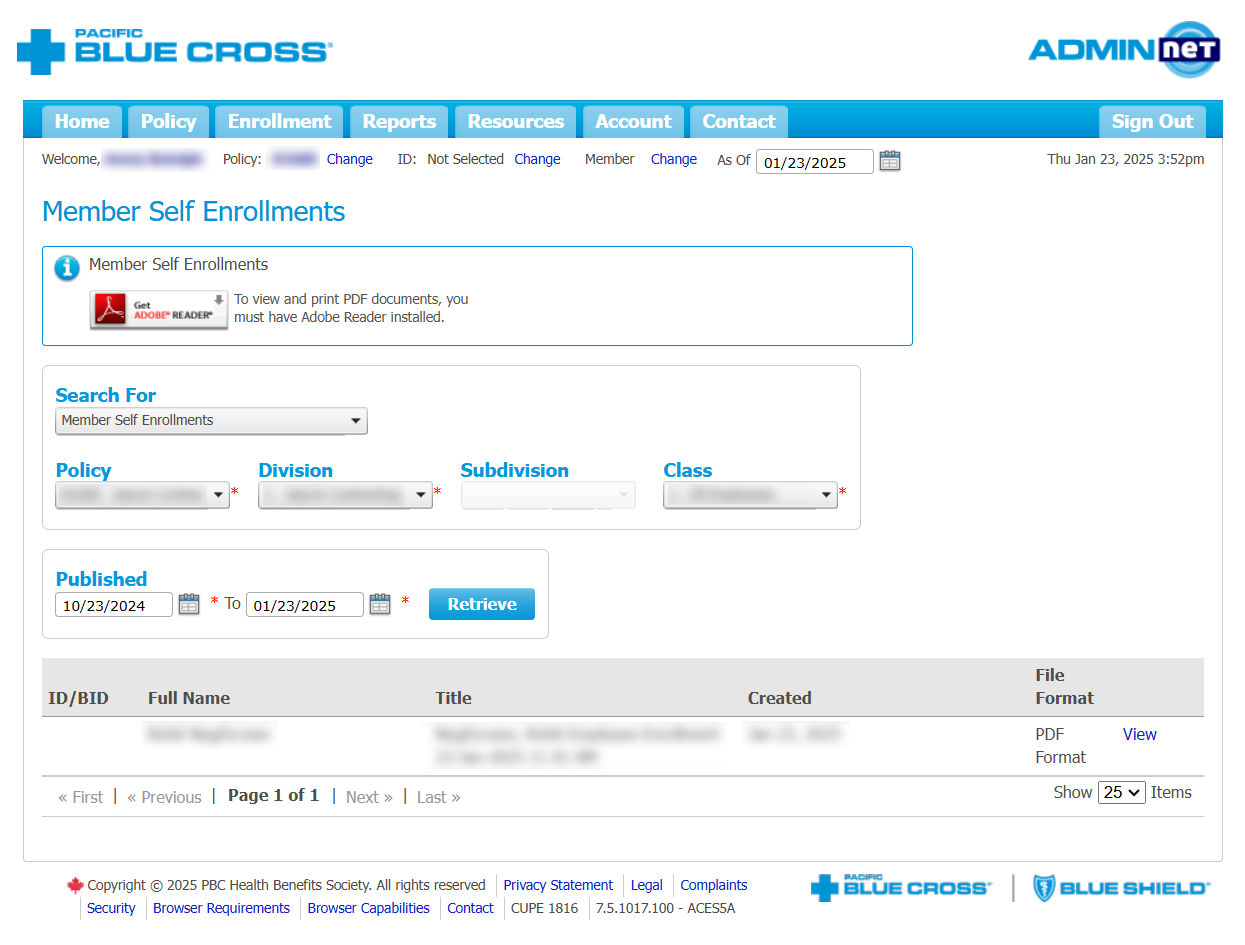
Select View Enrollment Forms from the ADMINnet homepage to search for and download forms that have been completed by plan members through the digital enrollment process.
- You can select a specific date range to narrow down the search results.
- Click Retrieve to access your results