
7.2.5 Submitting a Claim
Once you have successfully set up your banking information and received a signed Pay Provider Authorization Form from the Member, then you are ready to submit a Claim on behalf of that Member via PROVIDERnet.
Step 1: Sign In
Visit providernet.ca and sign in to your account.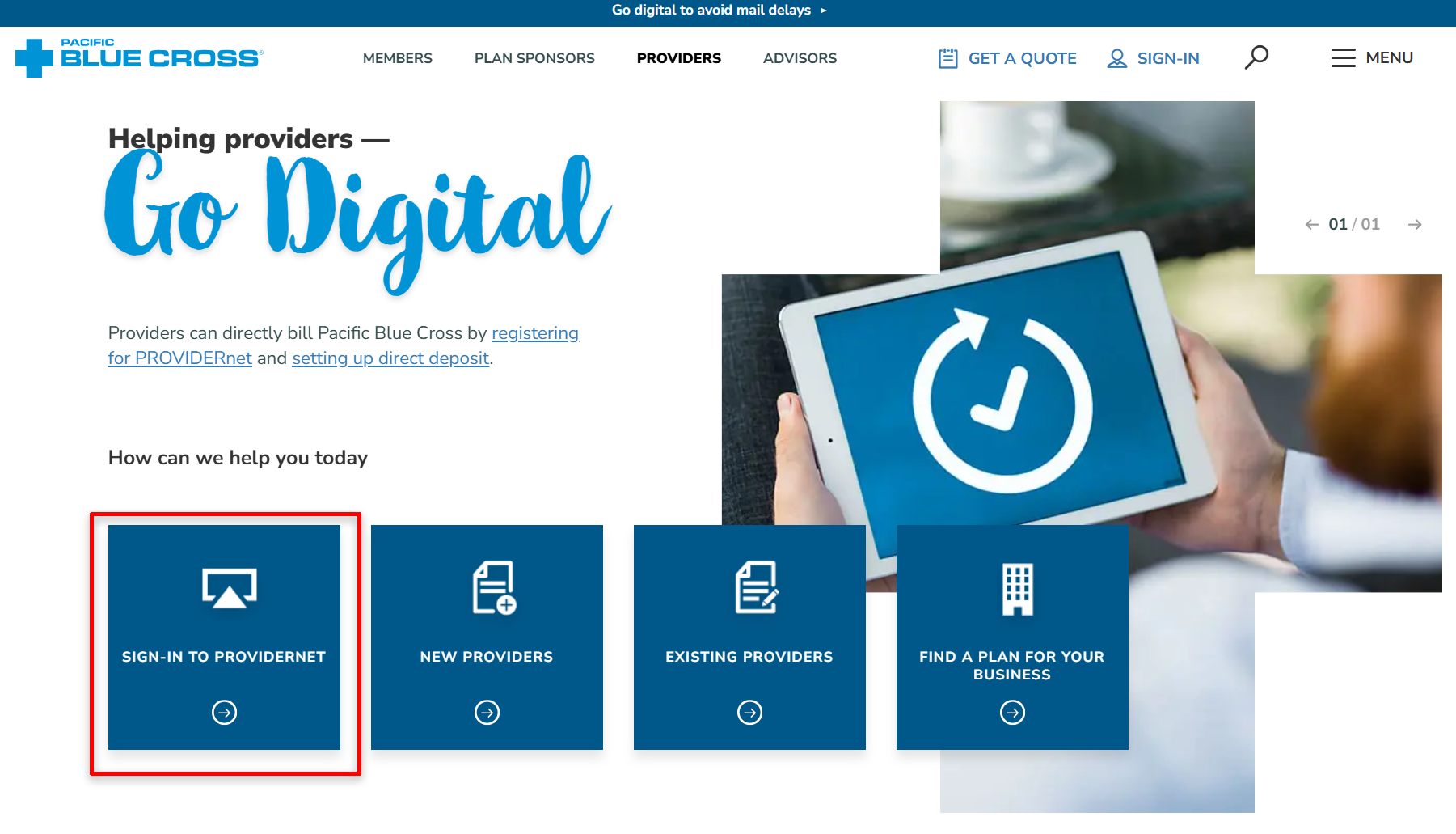
Step 2: Preparing the Claim
Navigate to the Claims tab menu option and select Submit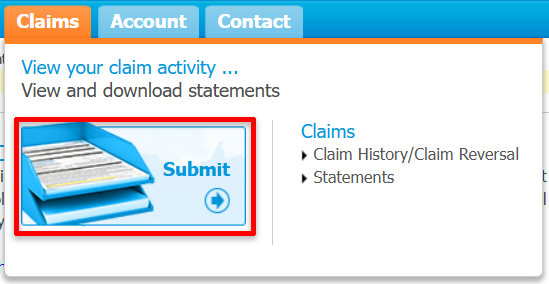
Enter the Member's Policy and ID Numbers.
Click Search.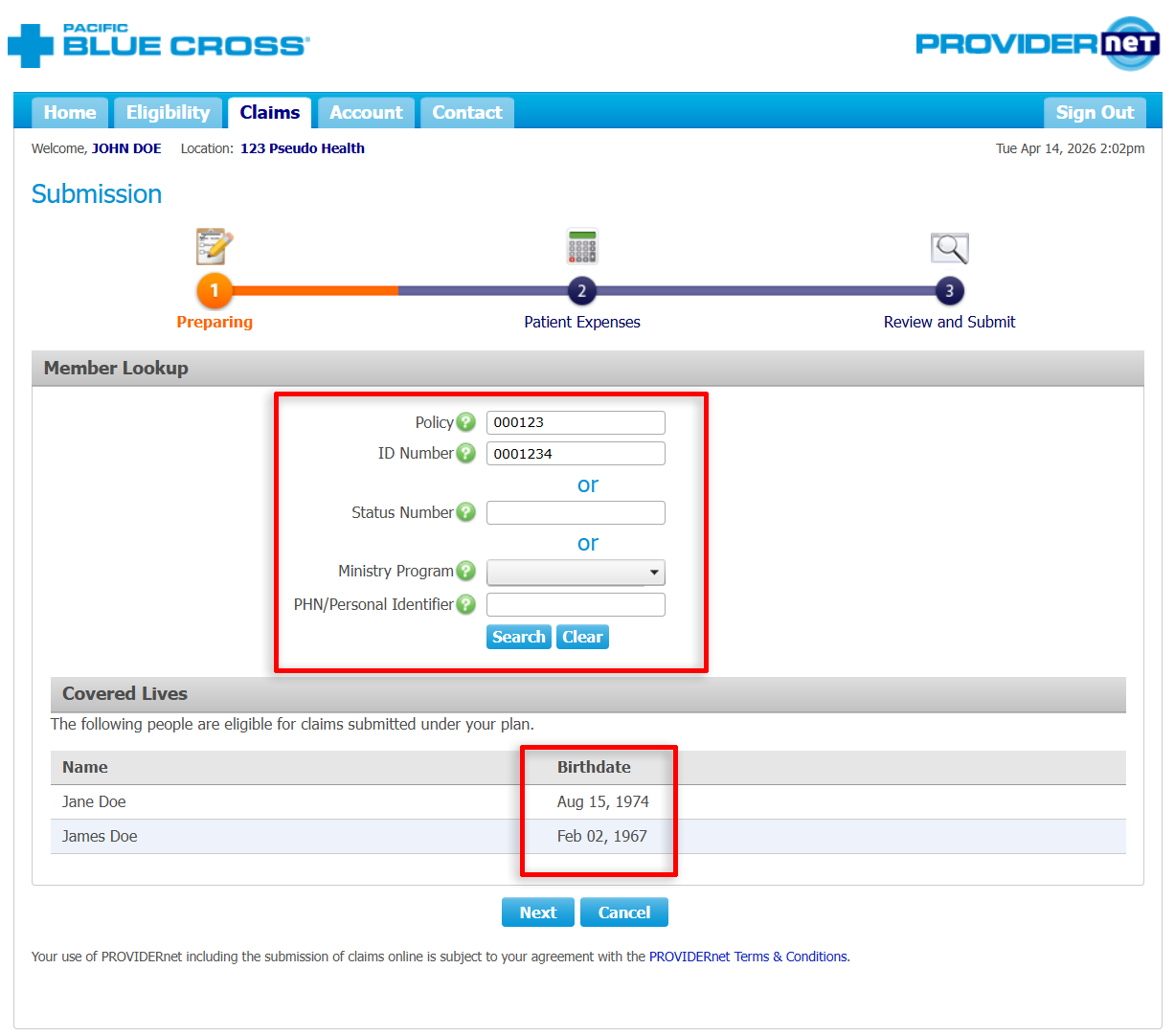
A list of the eligible Members for the Policy and ID will appear. Verify the Member's identity using the first and last name and birth date, as listed on the identification provided.
Step 3: Claim Type Selection
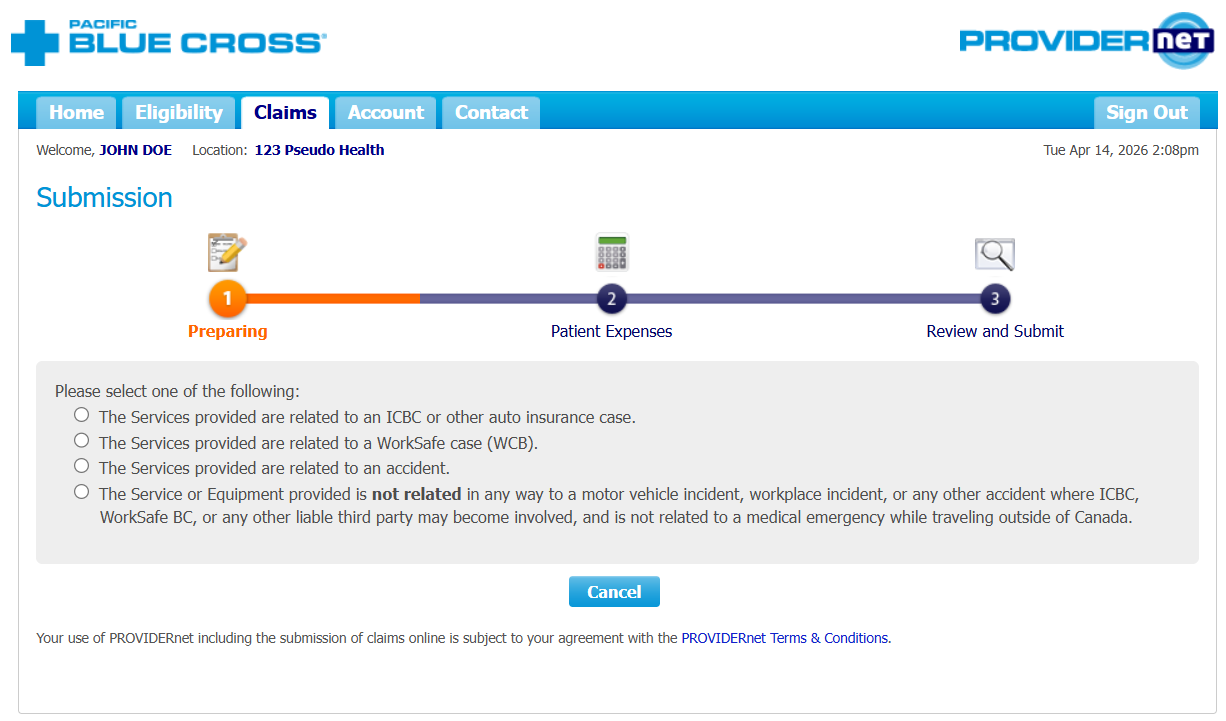
ICBC
WorkSafe BC
Other Accident
Not Related
Step 4: Member Expenses
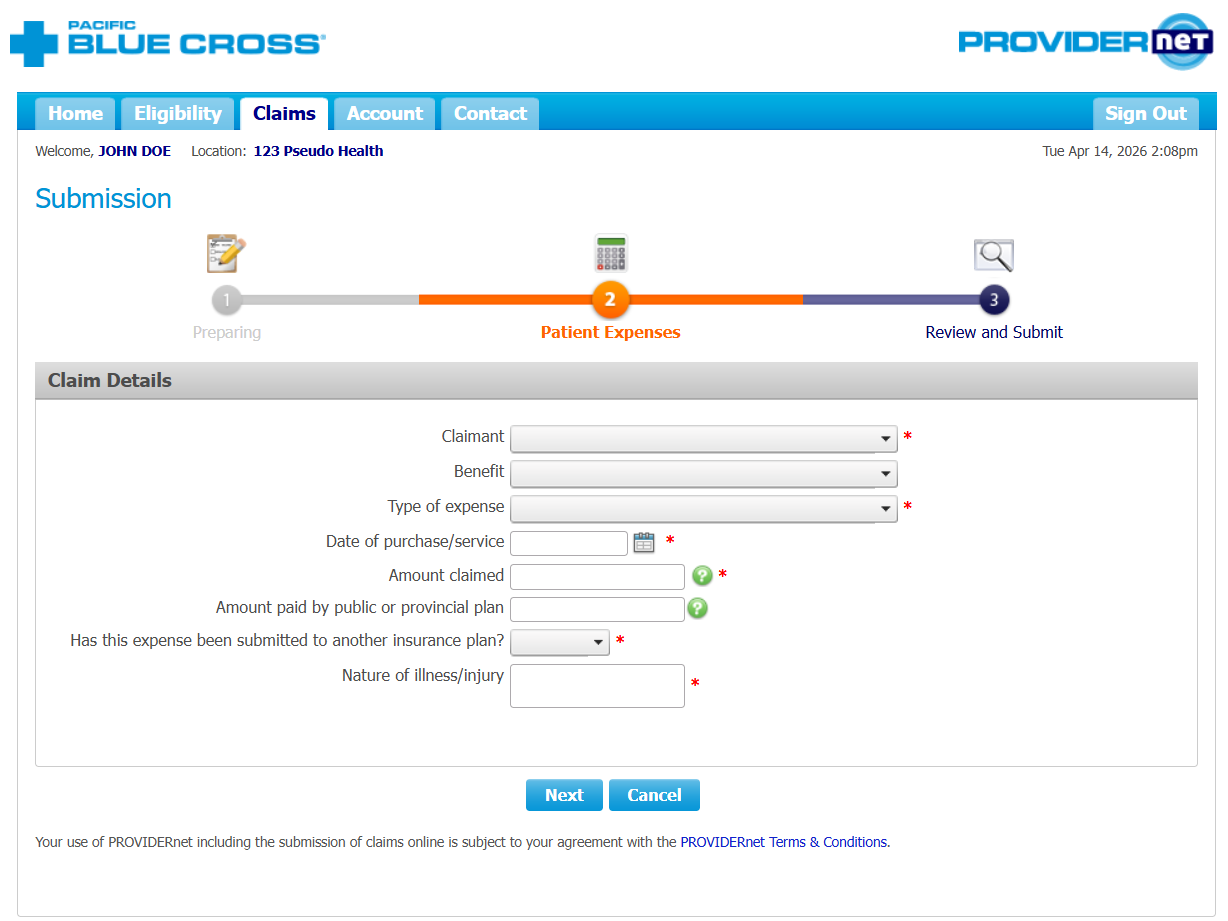
Complete the required information to submit a Claim.
Required Fields
| Field | Description |
|---|---|
| Claimant | The Member receiving the Service |
| Benefit | Type of benefit category |
| Type of expense | Specific Service or Equipment type |
| Date of purchase/service | When the Service was provided or Equipment purchased |
| Amount claimed | The total invoice amount for the expense |
| Amount paid by public or provincial plan | Any amount covered by government insurance |
| Amount paid by other insurance company | See Section 8.0 for COB information |
| Nature of illness/injury | Brief description of condition being treated |
Click Next when all information is entered.
Step 5: Review Details and Submit
Review Your Claim
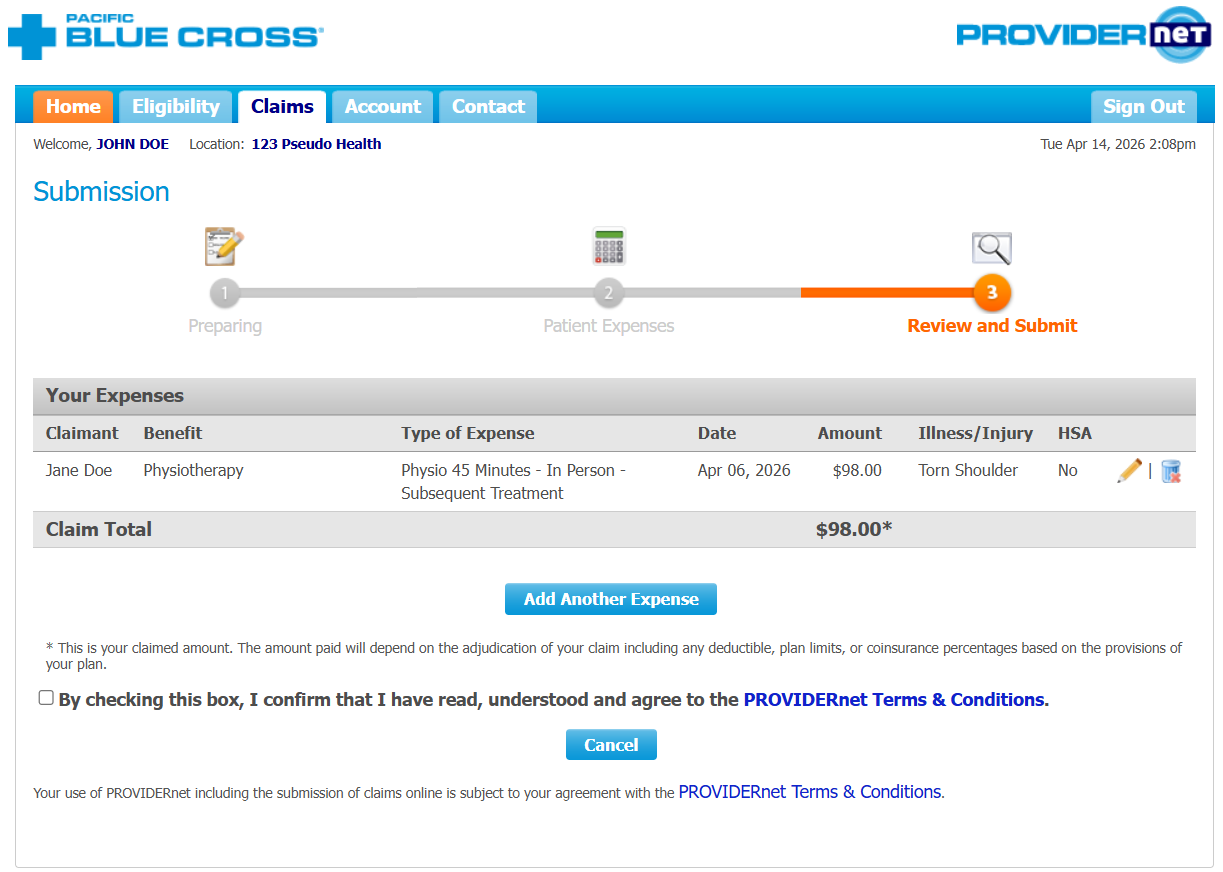
This screen will allow you to review the information you have submitted for a Claim.
Final Submission
Once you are satisfied with the Claim detail information, click the checkbox to confirm that all the information is correct, and you have read and agreed to the PROVIDERnet Terms & Conditions.
Click Submit.
Step 6: Claim Submission
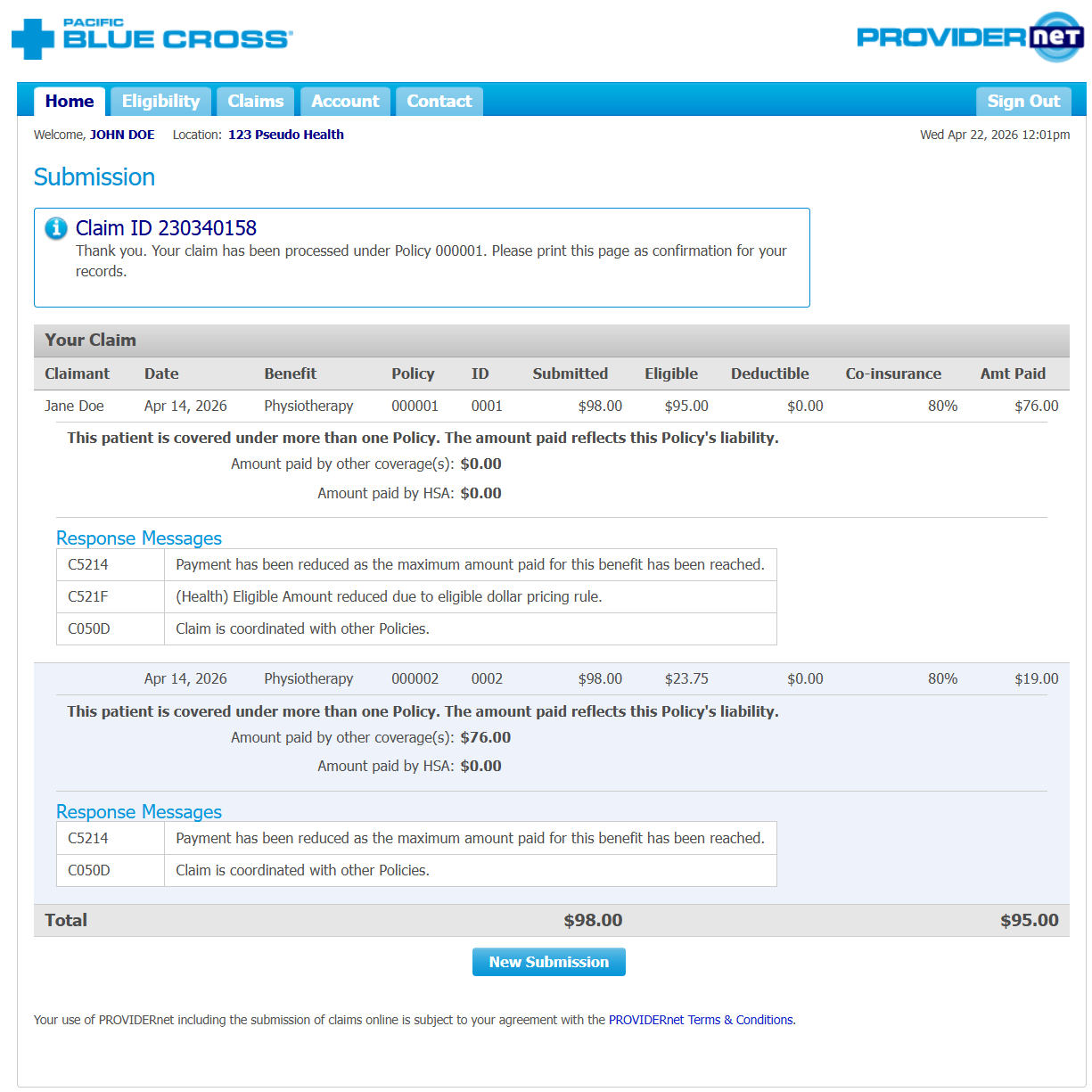
After Submission
Pended Claim
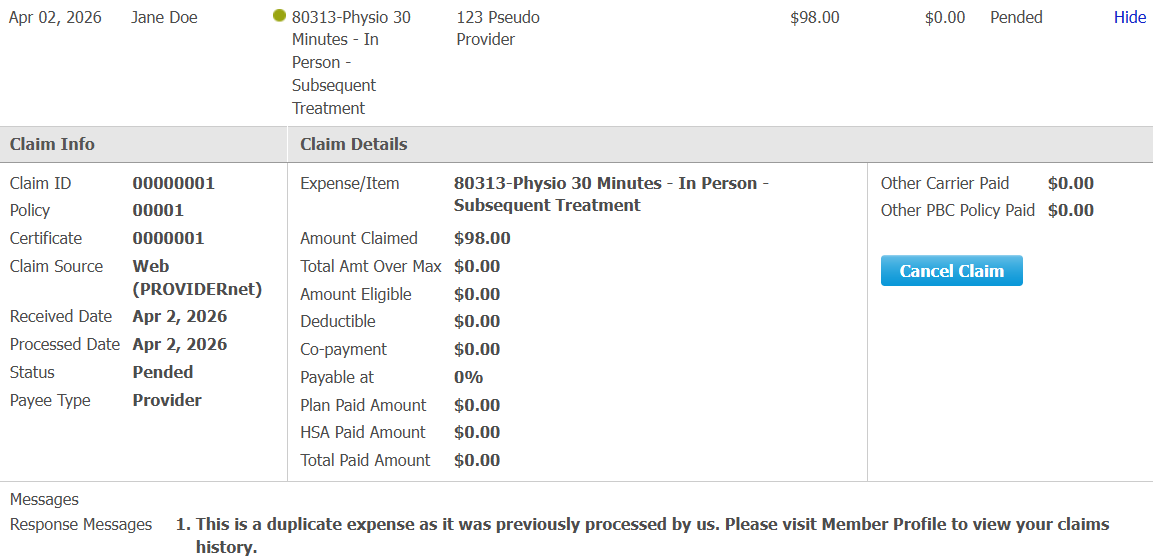
Options When a Claim is Pended
You can request the Member pay upfront and submit a Claim to Pacific Blue Cross themselves. You should then cancel the Claim you have submitted on their behalf. This process is similar to reversing a Claim. (See Section 7.2.8).
You can also check back to see when the Claim's pend status is resolved and bill the Member the remaining balance if applicable.